
How to Connect
Use this guide when you want to connect to your own Soulmask server. Follow the same flow HaruHost shows in How to connect: make sure the server is reachable first, let HaruHost prepare the tunnel if needed, then finish the direct join flow inside Soulmask.
Location
Section titled “Location”- Game Servers →
Your Game Server Name→How to connect
Part 1: Make sure the server is reachable
Section titled “Part 1: Make sure the server is reachable”If players cannot join yet, solve reachability first.
The easiest path is Tunnel. HaruHost prepares the connection for you so the server can be reachable over the internet without you having to manually set up port forwarding and firewall rules first.
Step 1: Open your server and start the connection guide
Section titled “Step 1: Open your server and start the connection guide”Open your Soulmask server page and use How to connect.
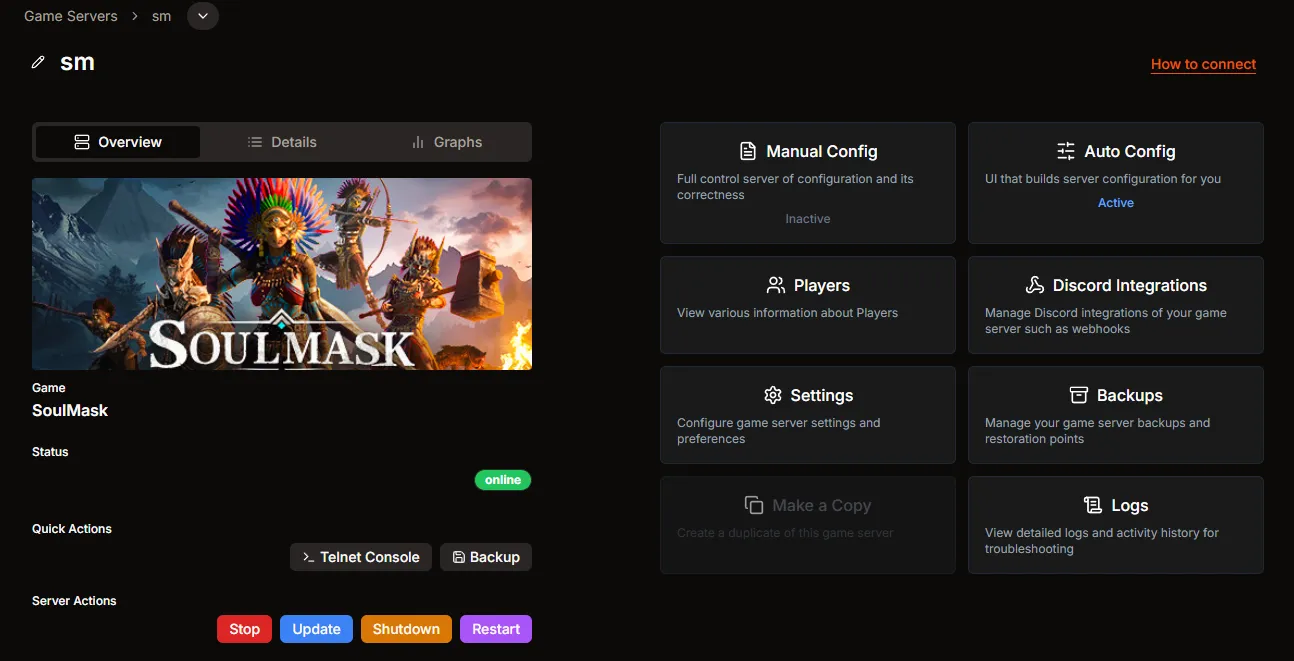
Step 2: Let HaruHost restart the server if the tunnel still needs to be prepared
Section titled “Step 2: Let HaruHost restart the server if the tunnel still needs to be prepared”If the server is already online but the tunnel is not connected yet, HaruHost shows a restart-required preparation step inside the guide.
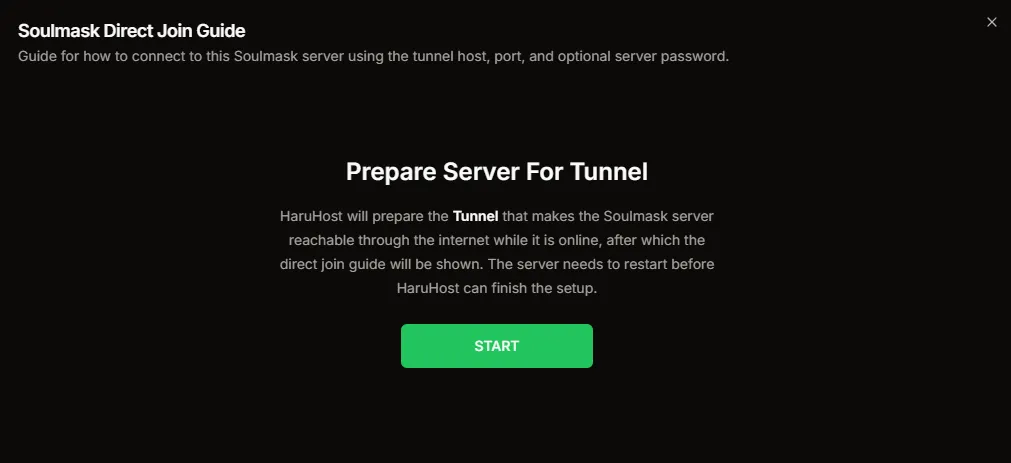
Step 3: Copy the direct join details from HaruHost
Section titled “Step 3: Copy the direct join details from HaruHost”Once the guide is ready, HaruHost shows the exact values to use:
Direct Join Host: the host to paste into SoulmaskDirect Join Port: the port to paste into SoulmaskServer Password: only needed if the server uses one

If the host or port is not working, treat it as a reachability problem. First check that the server shows Online in HaruHost. If the server was started without the tunnel being properly prepared, run the How to connect flow again and let HaruHost restart the server.
Part 2: Join the server
Section titled “Part 2: Join the server”Soulmask uses a direct connection dialog with separate host and port fields.
Step 1: Open Online Game
Section titled “Step 1: Open Online Game”Launch Soulmask and select Online Game from the main menu.
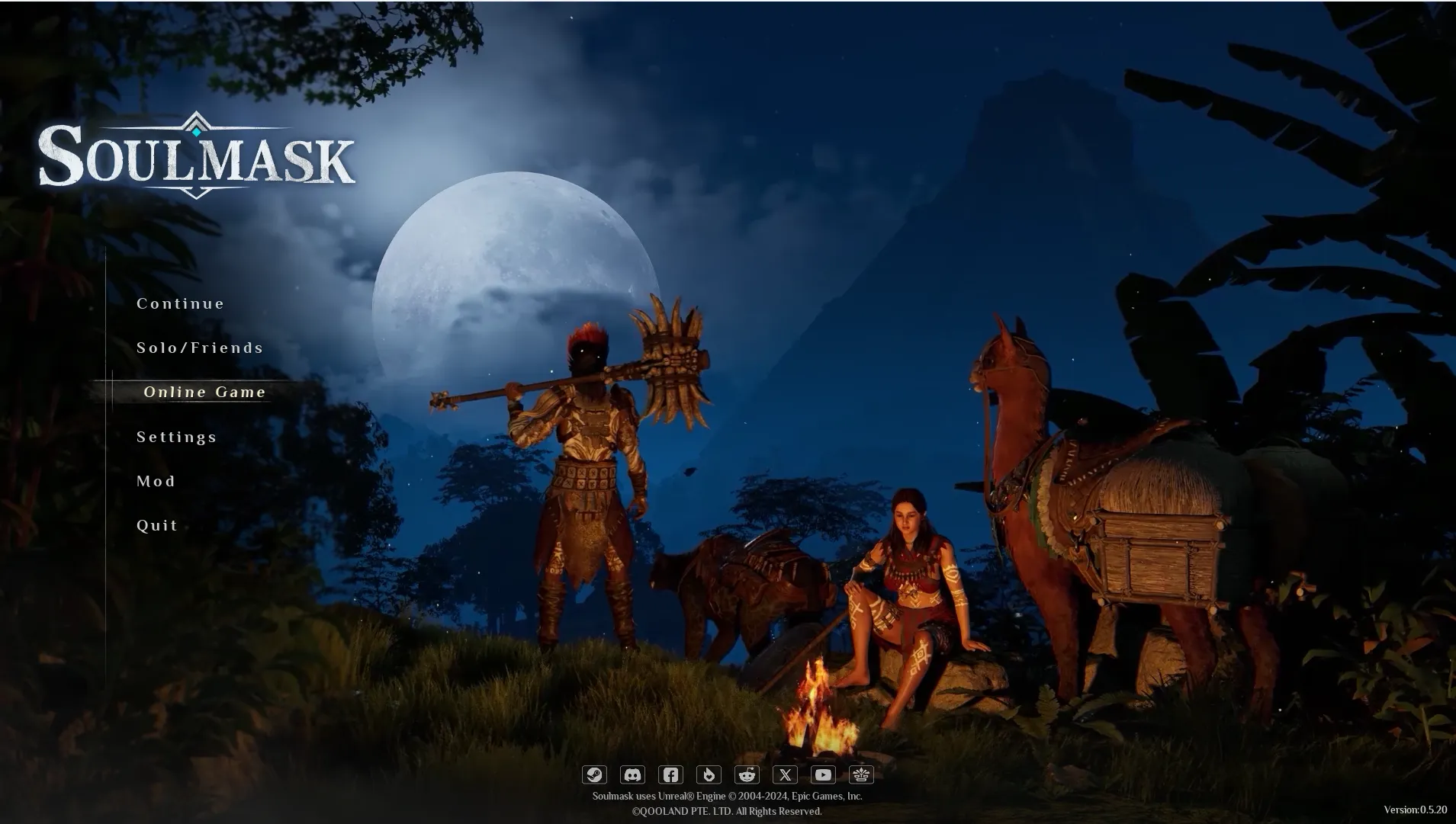
Step 2: Confirm the online mode warning
Section titled “Step 2: Confirm the online mode warning”If Soulmask shows the online mode warning, press OK to continue.
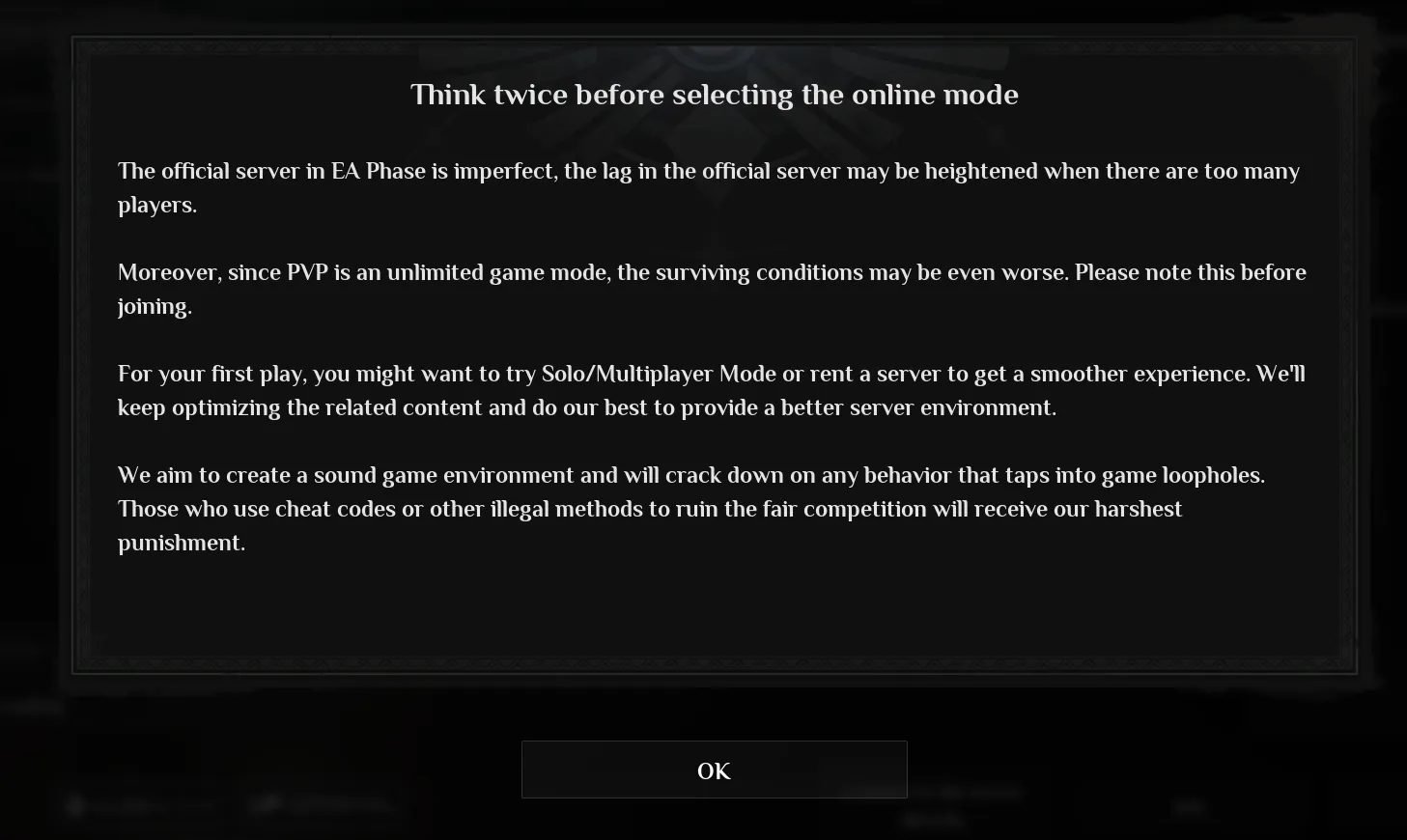
Step 3: Open direct connect
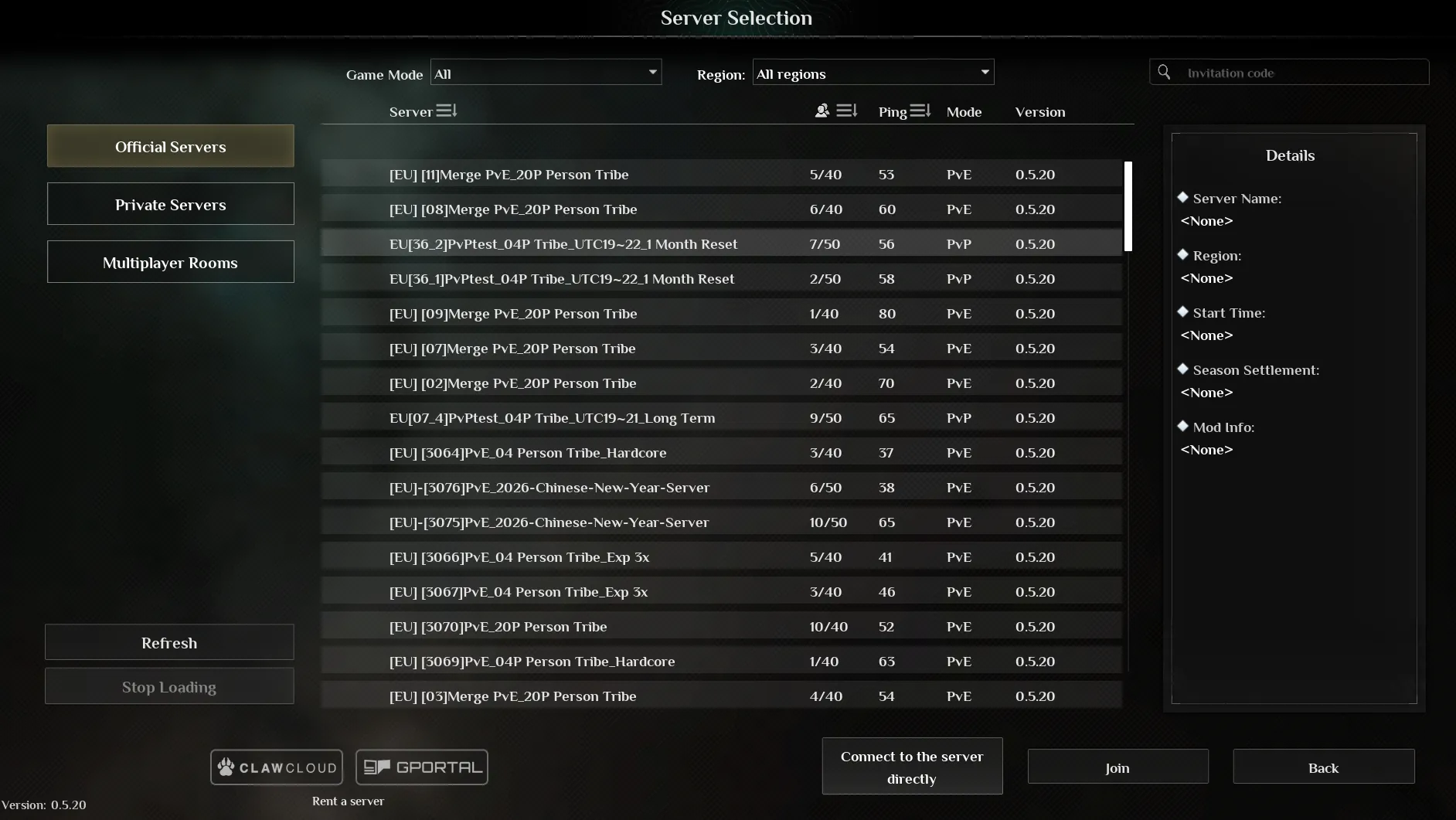
Section titled “Step 3: Open direct connect”In Server Selection, switch to Private Servers if needed, then choose Connect to the server directly.
Step 4: Enter the host, port, and optional password
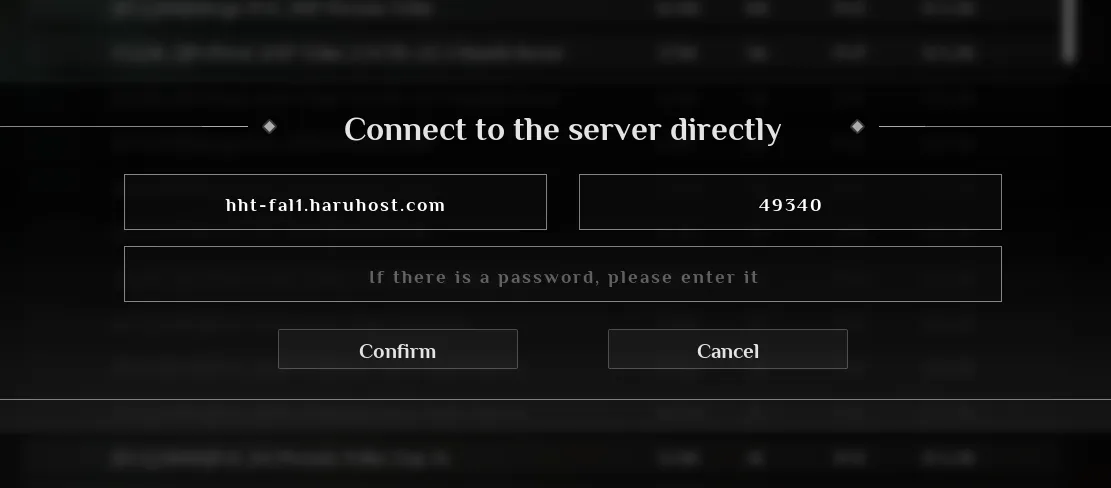
Section titled “Step 4: Enter the host, port, and optional password”Copy the Direct Join Host and Direct Join Port from HaruHost and paste them into Soulmask. If the server uses a password, enter it before confirming.
Step 5: Finish character creation or character selection
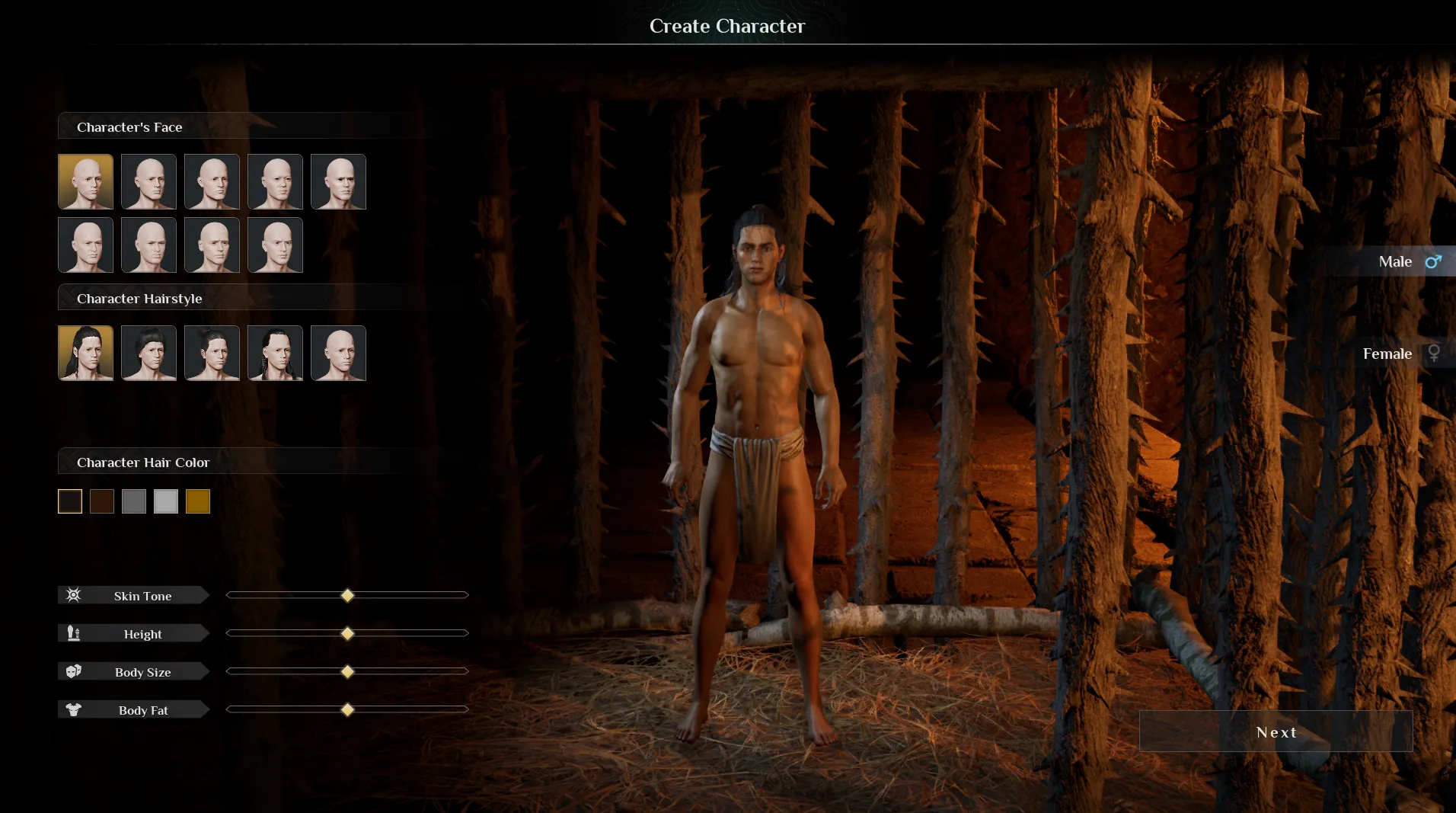
Section titled “Step 5: Finish character creation or character selection”After Soulmask accepts the connection, continue through character creation or character selection to enter the world.
Troubleshooting
Section titled “Troubleshooting”The server is not reachable from the internet
Section titled “The server is not reachable from the internet”Use Tunnel as the first fix. That is the main HaruHost advantage here, because it gives you a reliable path without making you manually configure router port forwarding and firewall rules first.
The guide says the server needs to restart
Section titled “The guide says the server needs to restart”That is expected when the server is already online without the tunnel fully attached for the current run. Let HaruHost restart the server from the How to connect flow so the tunnel can be prepared correctly.
Soulmask cannot connect after I enter the host and port
Section titled “Soulmask cannot connect after I enter the host and port”- Check that the server status shows
Onlinein HaruHost. - Re-copy the exact
Direct Join HostandDirect Join Port. - If you enabled the tunnel while the server was already running, let HaruHost restart the server from the guide.
- If you use manual firewall and port forwarding instead of the tunnel path, re-check those rules separately.
The password is rejected
Section titled “The password is rejected”- Copy the exact
Server Passwordfrom HaruHost. - If HaruHost shows
No password set, leave the password field empty unless the server is being managed with a password outside HaruHost. - If the password was changed recently, restart the server before testing again.
Summary
Section titled “Summary”The flow is simple:
- Open
How to connectin HaruHost. - Let HaruHost prepare or restart the server for
Tunnelif needed. - Copy the
Direct Join HostandDirect Join Port. - Enter those values in Soulmask and add the password only if the server uses one.