
How to Connect
Use this guide when you want to connect to your own Hytale server. Follow the same flow HaruHost shows in How to connect: make sure the server is reachable first, let HaruHost prepare Tunnel if needed, then finish the join flow inside Hytale.
Location
Section titled “Location”- Game Servers →
Your Game Server Name→How to connect
Part 1: Make sure the server is reachable
Section titled “Part 1: Make sure the server is reachable”If players cannot join yet, solve reachability first.
The easiest path is Tunnel. HaruHost prepares the connection for you so the server can be reachable over the internet without you having to manually set up port forwarding and firewall rules first.
Step 1: Open your server and start the connection guide
Section titled “Step 1: Open your server and start the connection guide”Open your Hytale server page and use How to connect.
Step 2: Let HaruHost prepare the server for Tunnel
Section titled “Step 2: Let HaruHost prepare the server for Tunnel”If the server still needs connection prep, HaruHost shows a preparation step inside the guide. This is where HaruHost enables the tunnel path for the current run and switches the server to Auto Config mode if that is still required.

Step 3: Copy the connection details from HaruHost
Section titled “Step 3: Copy the connection details from HaruHost”Once the guide is ready, HaruHost shows the exact values to use:
Direct Join Address: the exact host and port to paste into Hytale’sConnection AddressfieldServer Password: shown when the server uses oneSuggested Server Name: shown instead when no password is currently set in HaruHost

If the direct join address is not working, treat it as a reachability problem. First check that the server shows Online in HaruHost. If the server was started without the tunnel being properly prepared, run the How to connect flow again and let HaruHost restart the server if needed.
Part 2: Join the server
Section titled “Part 2: Join the server”Hytale uses a server browser flow with Add Server and a single Connection Address field.
Step 1: Launch Hytale and press Play
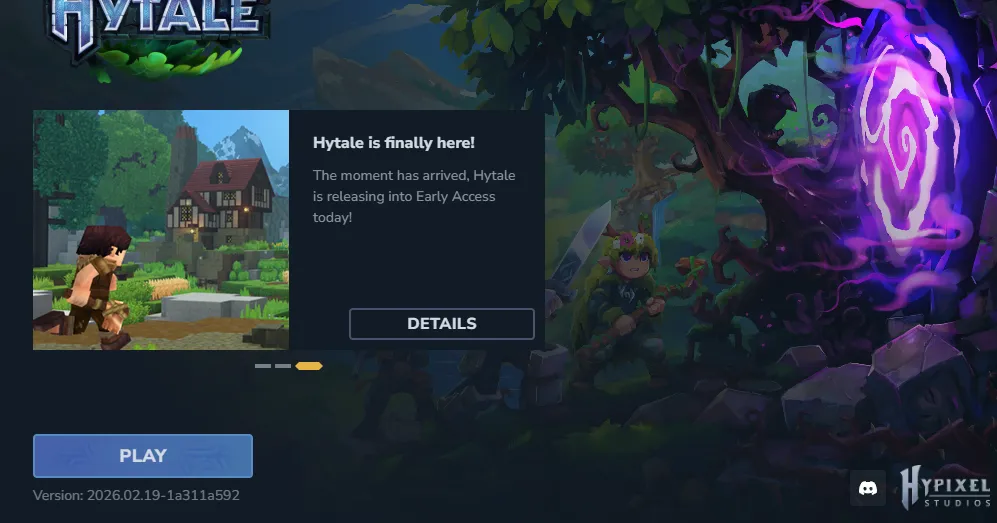
Section titled “Step 1: Launch Hytale and press Play”Open the Hytale launcher and press Play. If a launcher card or announcement is shown first, close it and continue into the game.
Step 2: Open the Servers menu
Section titled “Step 2: Open the Servers menu”From the main menu, choose Servers.

Step 3: Click Add Server
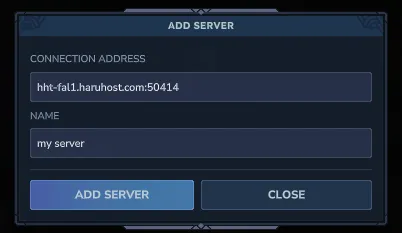
Section titled “Step 3: Click Add Server”In the server browser, click Add Server at the bottom-right. Hytale also shows Direct Connect, but Add Server is the better path here because it keeps the entry saved in your list.

Step 4: Paste the Direct Join Address
Section titled “Step 4: Paste the Direct Join Address”Copy the Direct Join Address from HaruHost and paste it into Connection Address exactly as shown, including the port. If HaruHost shows Suggested Server Name, you can use that in the Name field or enter any label you want.
Step 5: Select the saved server and join
Section titled “Step 5: Select the saved server and join”After the server appears in Favorites, select it and join from there.

Step 6: Wait for the connection screen
Section titled “Step 6: Wait for the connection screen”Hytale shows a connecting screen while it reaches the server through the HaruHost tunnel.

Step 7: Enter the Server Password if Hytale asks for one
Section titled “Step 7: Enter the Server Password if Hytale asks for one”If your Hytale server uses a password and the game prompts for it during the join flow, copy the exact Server Password from HaruHost and enter it there.
Step 8: Wait for the world to load
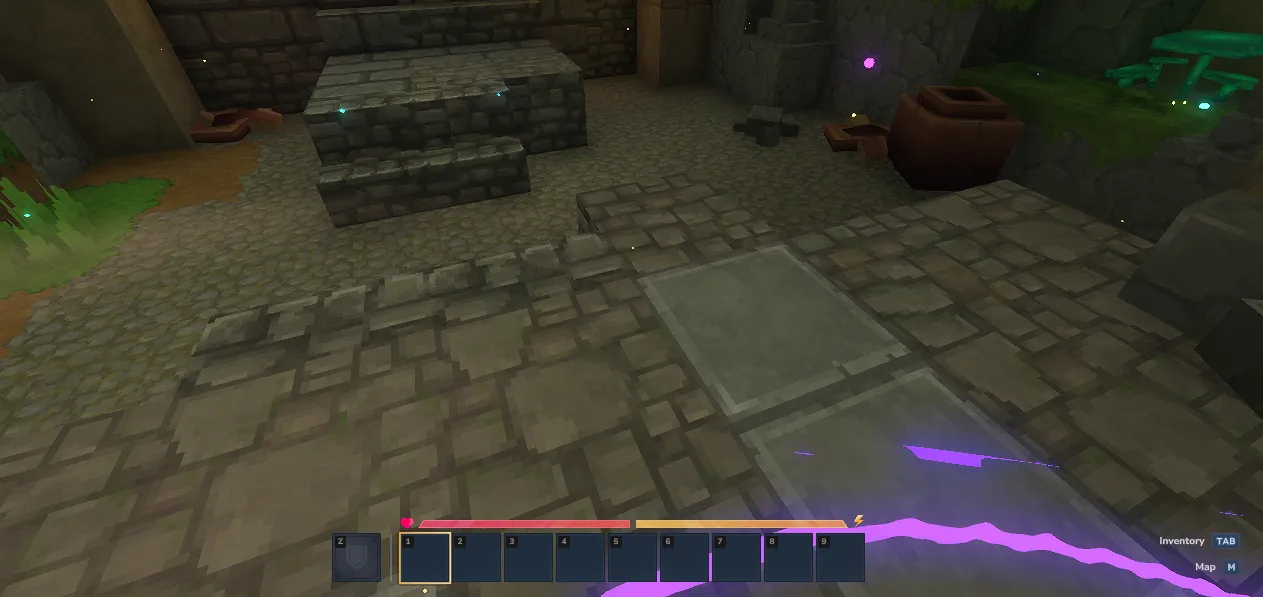
Section titled “Step 8: Wait for the world to load”Once loading finishes, Hytale places you into the server world.
Troubleshooting
Section titled “Troubleshooting”The server is not reachable from the internet
Section titled “The server is not reachable from the internet”Use Tunnel as the first fix. That is the main HaruHost advantage here, because it gives you a reliable path without making you manually configure router port forwarding and firewall rules first.
Hytale cannot join after I add the server
Section titled “Hytale cannot join after I add the server”- Check that the server status shows
Onlinein HaruHost. - Re-copy the exact
Direct Join Address, including the port. - If you enabled or changed tunnel-related settings while the server was already running, let HaruHost restart the server from the
How to connectflow. - If you use manual firewall and port forwarding instead of the tunnel path, re-check those rules separately.
The password is rejected
Section titled “The password is rejected”- Copy the exact
Server Passwordfrom HaruHost if it is shown in the guide. - If HaruHost shows
Suggested Server Nameinstead of a password, confirm whether the server password is being managed outside HaruHost. - If the password was changed recently, restart the server before testing again.
Summary
Section titled “Summary”The flow is simple:
- Open
How to connectin HaruHost. - Let HaruHost prepare the server for
TunnelandAuto Configif needed. - Copy the
Direct Join Address. - Add that address in Hytale and keep the
Server Passwordready if HaruHost shows one.