
Port forwarding and firewall rules for Ark Survival Ascended servers
If your Ark Survival Ascended dedicated server is not visible or friends cannot join, you usually need to forward the right ports on your router and allow them through Windows Firewall.
Quick checklist
- Start the server and confirm it shows Online.
- Use the Global address for internet players and the Local address for LAN players.
- Forward the Ports In Use from HaruHost to your server PC LAN IP.
- Allow the same ports in Windows Firewall.
- Test from outside your network using mobile data or a friend connection.
Know when port forwarding is required
Port forwarding is only needed for players connecting from outside your home network. If you are playing on the same PC or LAN, the Local address is typically enough and router changes are not required.
In HaruHost, the Details page shows a Local address and a Global address. Use Local for LAN and Global for internet connections.
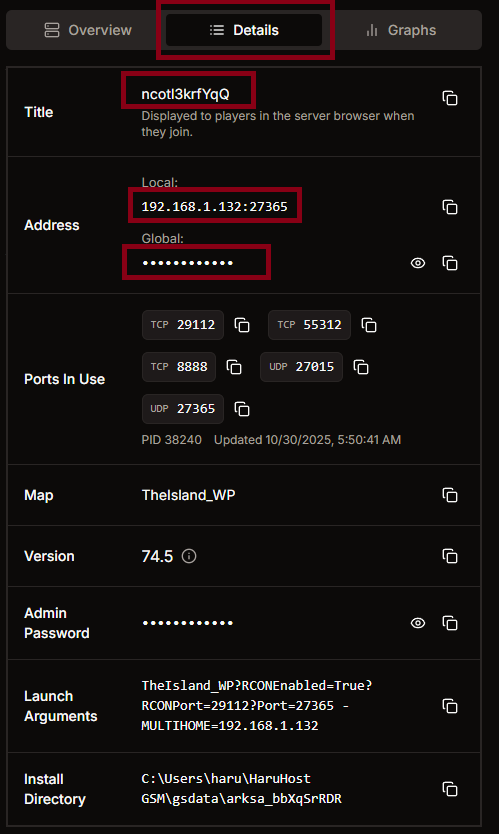
Step 1 Find the ports you must open
Do not guess port numbers. HaruHost shows the real values your server is using. Open your server Details page and look for Ports In Use, then use those exact ports for both firewall rules and router forwarding.
If you run multiple servers on one machine, each server must have its own unique port set, and you must forward the correct ports to the correct internal machine.
Step 2 Allow the ports in Windows Firewall
On Windows, your router can be configured correctly and players will still time out if Windows Firewall is blocking inbound traffic. HaruHost includes a Windows Firewall helper that can open the required inbound rules automatically for your server ports.
If you prefer manual setup, create inbound allow rules for the same ports shown in Ports In Use. Match the protocol shown by HaruHost and include both UDP and TCP entries when required.
Step 3 Forward the ports on your router
For friends on the internet, forward the Ports In Use from your router to the LAN IP of the PC running the server. The LAN IP must stay consistent, so use a DHCP reservation in your router if possible.
If your router supports UPnP, HaruHost can create the port mappings automatically. If UPnP is not available, add the port forwarding rules manually in your router admin panel.
Step 4 Test from outside your network
Testing from the same network can hide router issues. For a real test, try joining from mobile data or ask a friend to connect using the Global address. For connection methods and in game commands, follow How to Connect.
Troubleshooting
Port forwarding looks correct but it still fails
- The router rule points to the wrong LAN IP. This happens if your server PC IP changed after a reboot.
- Windows Firewall has no allow rule for the ports, or the rule is for the wrong protocol.
- You have double NAT. This is common when you have an ISP modem router plus your own router. You may need bridge mode or port forwarding on both devices.
- Your ISP uses CGNAT. Inbound port forwarding will not work until you have a public IP address or an alternative connection method.
Server is not visible in the browser
Visibility problems are often the same root cause as join failures. Make sure the server is Online, then forward Ports In Use and allow them in Windows Firewall. After that, refresh the server browser and adjust filters as needed.
Next steps
- Install and manage your server with HaruHost: Ark Survival Ascended Server Manager
- Download HaruHost for Windows: Download