
Step 1
Open the Windrose connection guide
On your Windrose server page, use How to connect so the guide can inspect the current server and tunnel state.


This guide solves the Windrose self-hosting problem where the server is online but players still cannot reliably reach it over the internet. The fix is to move away from the fragile default punch-through path and use a tunnel-backed Direct Connection setup instead.
With the correct tunnel setup, the Windrose server becomes reachable for your whole community and players can join through the game's normal Direct IP flow.
Windrose's standard self-hosted path uses the ICE protocol for P2P connection and relies on dynamically assigned via NAT punch-through . That means the result can depend on your router, local network behavior, and whether the environment cleanly supports UPnP without interference from extra network layers.
That is why a tunnel-backed setup matters: instead of hoping the default reachability path works on every network, you give players one stable public endpoint and one predictable Direct IP flow.
When HaruHost tunnel is enabled for Windrose, Windrose is configured to use its newer direct connection mode so the server listens like a standard server instead of relying on Windrose's default proxy and hole-punching behavior.
HaruHost is the recommended tool for this. The built-in How to connect flow prepares the Windrose tunnel path, updates the Direct Connection setup, and then shows the exact Direct Join Host , Direct Join Port , and optional Server Password that players should use.
On your Windrose server page, use How to connect so the guide can inspect the current server and tunnel state.
If the Windrose server is not already prepared for tunnel-backed Direct IP access, HaruHost will guide you through the preparation flow and restart the server when needed.

Once preparation is complete, HaruHost shows the exact host, port, and password to paste into Windrose. That removes the guesswork around file edits, public endpoints, and direct join formatting.

If you are not using HaruHost, the same idea still applies: stop the server, expose one stable public endpoint, enable Windrose Direct Connection, and make sure the exposed port works on both TCP and UDP .
For a tunnel-backed Direct Connection setup, expose the direct connection port on both TCP and UDP.
{
  "ServerDescription_Persistent": {
    "UseDirectConnection": true,
    "DirectConnectionServerAddress": "windrose.example.com:7777",
    "DirectConnectionServerPort": 7777,
    "DirectConnectionProxyAddress": "0.0.0.0"
  }
}If your tunnel provider gives a host without a `:port` suffix, use that host in `DirectConnectionServerAddress` and keep `DirectConnectionServerPort` set to the public port you exposed.

Windrose uses separate IP address and Port fields in the Direct IP screen. The values players enter should come from DirectConnectionServerAddress and DirectConnectionServerPort that you or HaruHost prepared.
Players should open Connect to server and switch to the Direct IP tab.

Paste the host portion from DirectConnectionServerAddress into IP address and the value from DirectConnectionServerPort into Port . If you stored `host:port` inside `DirectConnectionServerAddress`, split that back into Windrose's separate join fields.
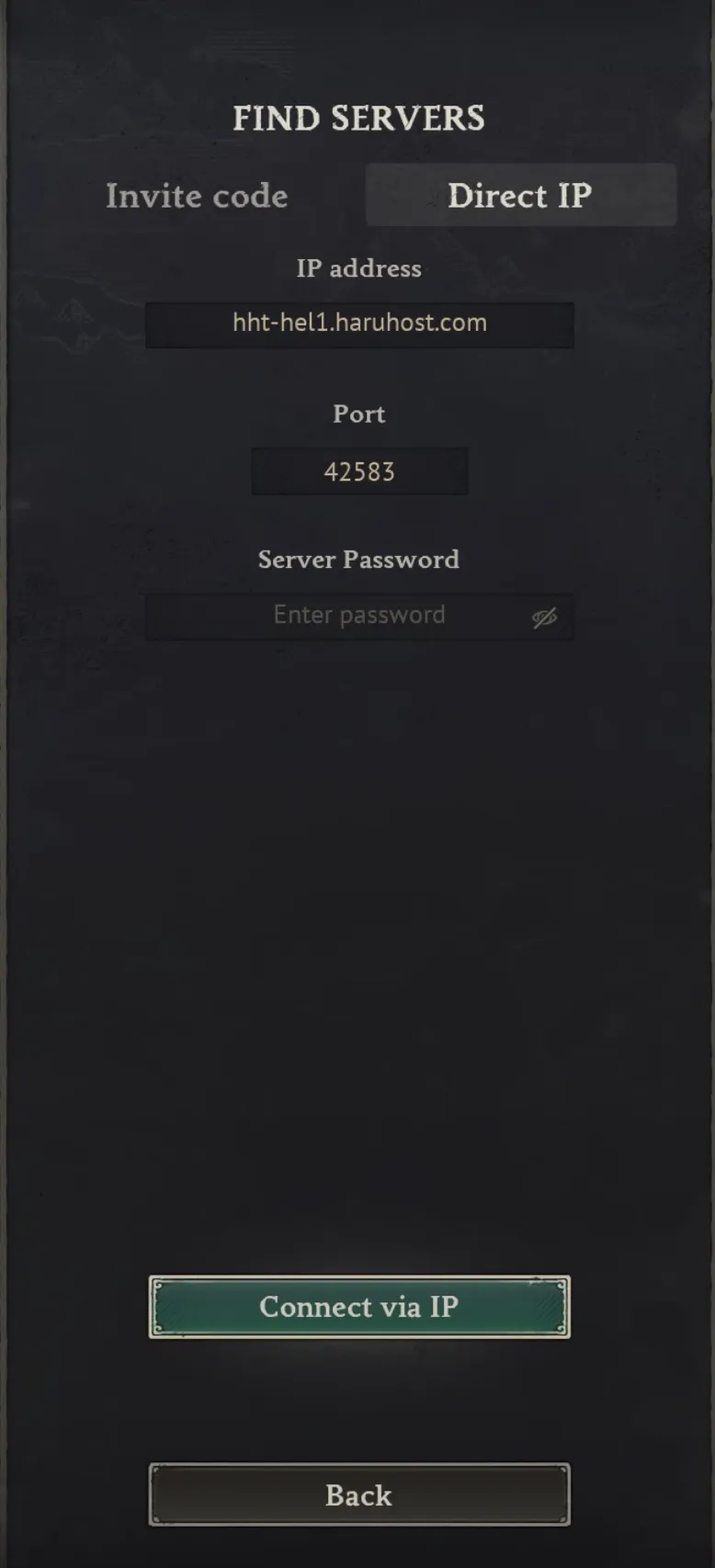
If the Windrose server is password protected, players should enter that password before joining.

Once the host, port, and optional password are correct, the player can press Connect via IP to join.
HaruHost is the easiest Windrose path because it prepares the tunnel-backed Direct Connection setup for you and then shows the exact host, port, and password to use.
playit.gg is one example of a compatible tunnel provider if you want to self-manage the public endpoint and feed the resulting host plus port into Windrose Direct IP.
Any tunnel technology can work if it gives Windrose one stable public endpoint and the exposed port is available on both TCP and UDP.
For this setup, players should use Direct IP with the tunnel host and port. Invite Code belongs to Windrose's standard discovery path, while this guide is specifically for tunnel-backed direct connection.
Set it to the public tunnel endpoint that outside players should use. If your tunnel provider gives `host:port`, put that full `host:port` value into `DirectConnectionServerAddress`. If it gives only a hostname, use the hostname there and keep `DirectConnectionServerPort` set to the public port that endpoint exposes.
Yes. This setup is especially useful when the server sits behind double NAT or CGNAT, because the tunnel gives players one stable public endpoint instead of depending on that NAT path to behave like a normal direct host.
Use it when players are running into connection issues, when the normal Windrose reachability path is unreliable, or when you want one stable Direct IP endpoint to share with the whole community.
Yes. Treat that as good practice. Game servers often re-sync config during shutdown or startup, so editing `ServerDescription.json` while Windrose is offline helps avoid stale or overwritten values.
No. If your tunnel already provides the public endpoint, it replaces the manual port forwarding step.
On self-managed setups, verify the chosen direct connection port is not blocked for the traffic path your tunnel uses. A tunnel does not automatically fix a blocked local firewall path.
Yes. Keep the dedicated server version aligned with the game client version. Version mismatches can cause connection failures or unstable behavior.
Yes. If the server is still unreachable, do one clean test without VPN or proxy layers because they can interfere with the normal Windrose networking path and with troubleshooting.
Use a real external test when possible. Same-LAN testing can behave differently and does not prove that outside players can reach the server.
Windrose can take a while on the initial world load or the first join after startup. Let the server finish loading and give the client extra time before assuming the tunnel or Direct IP settings are wrong.
Yes. HaruHost supports Ubuntu and Linux with the CLI service and web panel flow. On Linux, HaruHost uses Docker for these workloads and will try to install Docker automatically on Ubuntu. If that automatic step fails, install Docker manually and continue with HaruHost.
Yes. HaruHost supports Windows 10, Windows 11, and Windows Server. It also helps with missing prerequisites on Windows, including Microsoft Visual C++ redistributables, so the server can start correctly.
Use the hostname as-is in Windrose's `IP address` field and keep the `Port` field set to the public port your tunnel exposes for Direct Connection.
It replaces the default reachability path that depends on punch-through behaving well on the host network with one stable public endpoint that players can join directly.
If you want more general tunneling answers, read the main game server tunneling page.