

Valheim Server Manager
Run a self-hosted Valheim server with a clearer connection story. HaruHost helps you make Valheim reachable with Tunnel, then hands players the exact Direct Join Address and Server Password they need.
Pick the Valheim path you need first
Start here if your main job is getting yourself or friends into the server with the exact Direct Join Address and Server Password HaruHost provides.
Use this path when the server works locally but internet joins fail, or when you want the easiest route around awkward home-network setups.
Open the Valheim guides hub for the current connection documentation and future maintenance guides as they are added.
Start with the Valheim problem you want to solve
The strongest HaruHost story for Valheim is not a generic control panel. It is a clearer direct-join workflow, an easier Tunnel path for awkward home networks, and the management tools you need once the server is live.
Connect to Your Own Valheim Server Without Guesswork
The real Valheim flow in HaruHost handles the offline and starting states inside the guide, then gives you the exact address and password players need before it walks them through Add server, Connect, and the final password prompt in-game.
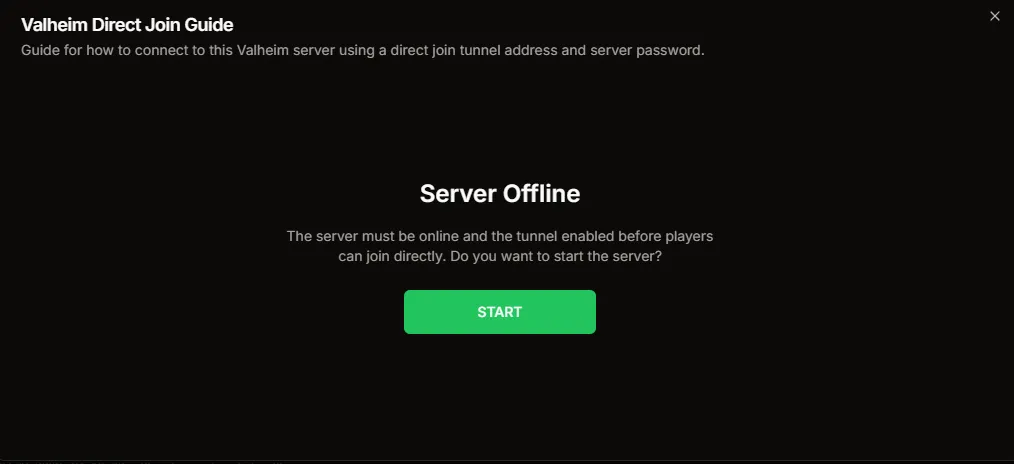
If the server is offline, the guide does not send you elsewhere first. It shows the start prompt directly inside the connection flow.
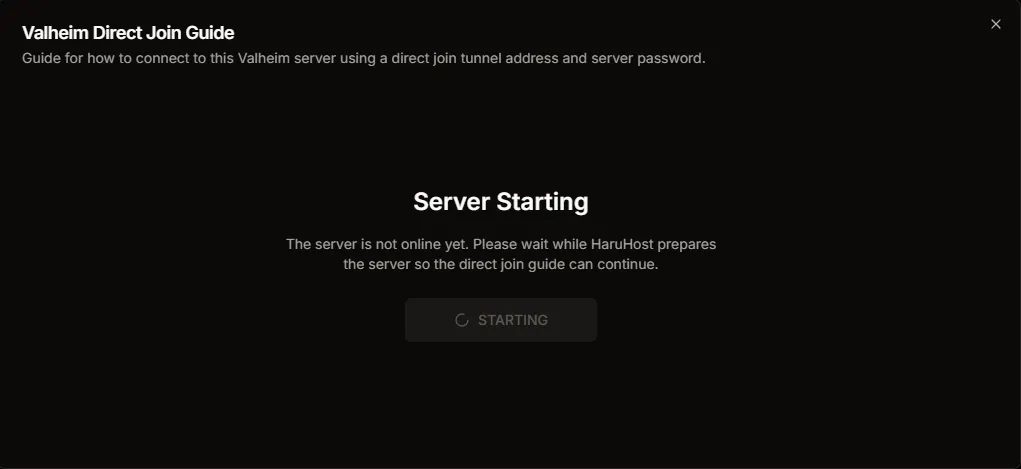
HaruHost keeps the guide open while the server is still starting so the operator can stay focused on the join workflow instead of jumping between panels.
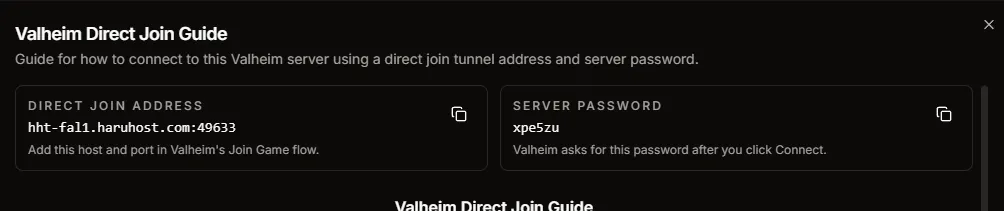
Once the guide is ready, HaruHost shows the exact Direct Join Address and Server Password instead of leaving players to guess what values matter.

The player-side path begins in Valheim itself. Open Start Game before you choose a character and continue into the server browser.

Pick the character you want to use, then continue into Join Game instead of guessing whether the order matters.

Valheim uses the Add server path, so HaruHost centers the workflow around the exact address players should add here.
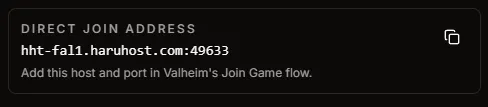
The address card in HaruHost gives players the host and port they should copy directly into Valheim without second-guessing LAN, public IP, or router details.

Paste the Direct Join Address into Valheim's Add server dialog, then save it so the server appears in the join list.
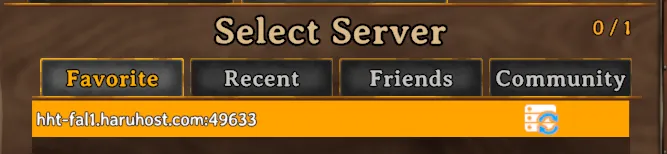
Once the server entry is in the list, choose it and press Connect so Valheim can continue into the password prompt.
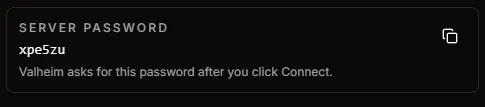
The Server Password card in HaruHost answers the last obvious join question before the world loads.

Valheim asks for the password after Connect, not before. HaruHost makes that timing explicit so the player-side flow feels predictable instead of confusing.

The end goal is simple: get the server reachable, use the exact values HaruHost shows, and load into the Valheim world cleanly.
Make Valheim Reachable Without Router Guesswork
HaruHost Tunnel is the cleanest answer when you want Valheim to be reachable outside your LAN without relying on manual router changes, fragile network assumptions, or the wrong type of public address for the game.
- ✓ A better fit for home networks where direct reachability is awkward
- ✓ Useful when CGNAT or ISP and network limitations make normal exposure unreliable
- ✓ Keeps the connection story centered on the exact address players should actually use

Server configuration UI
HaruHost replaces Valheim's text configuration files with an Auto Config view that groups network settings, server config, and player lists into clear cards you can click into.
- ✓ Configure ports, network bindings, and basic server identity from a single screen
- ✓ Edit core server options without touching config files or launch arguments
- ✓ Use Auto Config slots to experiment with different setups for your Valheim world

Admin list shareable UI
Manage Valheim admins from a dedicated UI instead of editing the admin list file by hand, and reuse that list across multiple servers.
- ✓ Add or remove player IDs with platform prefixes such as steam_... using a simple form
- ✓ Reuse the same admin list across multiple Valheim servers on your machine
- ✓ Avoid copy-paste mistakes by keeping one shared admin list in HaruHost

Banned list shareable UI
Keep your Valheim ban list tidy with a UI that makes it obvious who is blocked and where their access applies.
- ✓ See banned player IDs in a clear table instead of a raw text file
- ✓ Quickly add new bans or lift bans without hunting for config files
- ✓ Optionally reuse the same ban list on other Valheim servers you host

Permitted list
Use a permitted list to lock your Valheim server down to a curated set of player IDs so only known players can join.
- ✓ Maintain a whitelist of permitted player IDs without manual file edits
- ✓ Toggle between open and permitted-only access without rewriting config files
- ✓ Copy a permitted list to additional Valheim servers when you expand your cluster

Server console
Watch Valheim server output and send commands from an integrated console so you can troubleshoot and moderate without leaving HaruHost.
- ✓ Stream live logs from your Valheim dedicated server
- ✓ Send console commands and see responses inline
- ✓ Keep the console next to configuration and player lists for faster admin work

Windows firewall helper
Avoid guesswork and scripts when opening ports. HaruHost can generate the correct inbound firewall rules for your Valheim server.
- ✓ Guided helper that creates inbound rules for the right ports
- ✓ No manual PowerShell or Windows Firewall screens to click through
- ✓ Status and feedback so you know rules are in place
UPNP port forwarding
If your router supports UPNP, HaruHost can set up port mappings so friends can reach your Valheim server without manual router configuration.
- ✓ Automatic UPNP mappings for your Valheim server ports
- ✓ Detects whether your router supports UPNP and shows status
- ✓ Simple toggles so you can enable or disable mappings as needed
Automated crash recovery
Let HaruHost watch your Valheim server for crashes and automatically restart it so your players are not left waiting.
- ✓ Detects when the server process has crashed or stopped unexpectedly
- ✓ Automatically restarts the Valheim server to reduce downtime
- ✓ Toggle crash recovery on or off per server as needed

Thunderstore mod manager
Use the built-in Thunderstore Mod Manager to keep your Valheim server, your local game, and your community on the same mod profile.
- ✓ Search thousands of Valheim mods on Thunderstore by name, author, or description
- ✓ Create mod profiles that you can reuse locally in your game client and across multiple Valheim servers
- ✓ Publish profiles so they are publicly accessible and automatically stay in sync when you update them
- ✓ Let other players import your public profiles so their setup tracks your changes and the whole community stays in sync

Mod profile launcher
Use the mod profile launcher to see all of your Thunderstore profiles in one list and launch Valheim with the correct profile selected.
- ✓ Browse your Valheim Thunderstore profiles alongside profiles for other games in a single launcher view
- ✓ Pick a Valheim profile and launch the game client so it starts with the right mods enabled
- ✓ See at a glance which profiles are linked to which HaruHost servers so your client and servers stay aligned

HaruHost Features for Valheim
- How to Connect
Use the Valheim connection guide in HaruHost when you want the exact Direct Join Address and Server Password instead of leaving players to guess which values matter.
- Tunnel
Use HaruHost Tunnel when Valheim needs to be reachable over the internet but normal port forwarding is awkward, unavailable, or blocked by CGNAT and similar home-network problems.
- Network Helpers
Use HaruHost network helpers to review ports, create firewall rules, use UPnP port forwarding when supported, and validate whether Valheim is actually reachable instead of troubleshooting blind.
- Firewall Rules
Use the built-in firewall helper to create the correct inbound Windows firewall rules for the server.
- UPnP Port Forwarding
Use router-side UPnP helpers when your network supports them so Valheim is easier to expose without manual router work.
-
- Auto Config and Access Lists
Manage Valheim through Auto Config and dedicated admin, banned, and permitted list UI instead of starting from raw config files and hand-edited access lists.
- Admin List
Manage Valheim admins through a shared UI instead of editing the admin list file by hand.
- Banned List
Keep track of blocked players in a dedicated banned-list UI instead of raw text files.
- Permitted List
Use a permitted-list workflow when you want to lock Valheim down to a curated set of player IDs.
-
- Mods, Backups, Console, and Logs
Keep Valheim mods in sync with Thunderstore tools, automate backups and updates, and keep the console and logs close when the server does something unexpected.
- Easy Updates
Run simple Valheim updates from HaruHost instead of handling Steam updates by hand, with the current installed build shown in the same server workflow.
- Discord Status and Crash Recovery
Send Valheim server-status updates to Discord and let HaruHost recover from crashes automatically so routine operations do not depend on constant manual attention.
- Server Status
Post Valheim online and offline updates to Discord so your community can see server availability without opening the manager.
- Crash Recovery
Let HaruHost watch for unexpected stops and restart the Valheim server automatically.
-